
Bring order to your photos – quickly, easily, and efficiently!
FotoArchiver4 helps you organize your photos
and keep them neatly archived.
During the archiving process, your photos are
automatically numbered, renamed according to
a consistent naming scheme, and stored in a
newly created folder.
This makes it easy to keep track of your
photos and projects.
When you launch FotoArchiver4 for the first time, you will be asked to select two folders:
1. Default Archive Folder
Choose where your archived photos should be stored.
By default, the Desktop folder
is suggested.
This folder is used when no server path has been
configured or when no matching project folder
can be found on the server.
2. Import Folder
Select the folder from which you want to import
your photos.
By default, the Downloads folder
is suggested.
As soon as photos are detected in this folder,
an import button appears in the sidebar of
the application window, allowing you to
conveniently import them into FotoArchiver4.
Both folder locations can be changed at any time in the FotoArchiver4 Settings.
FotoArchiver4 never permanently deletes your photos automatically!
During archiving, your photos are renamed according to the selected naming scheme and then copied to the designated archive folder or configured server.
After archiving, the original photos are
moved to the Trash.
They remain available there and can be
restored if necessary.
Please note:
Once you empty the Trash, the original photos
it contains are permanently deleted.
From that point on, only the previously
archived copies will remain available.
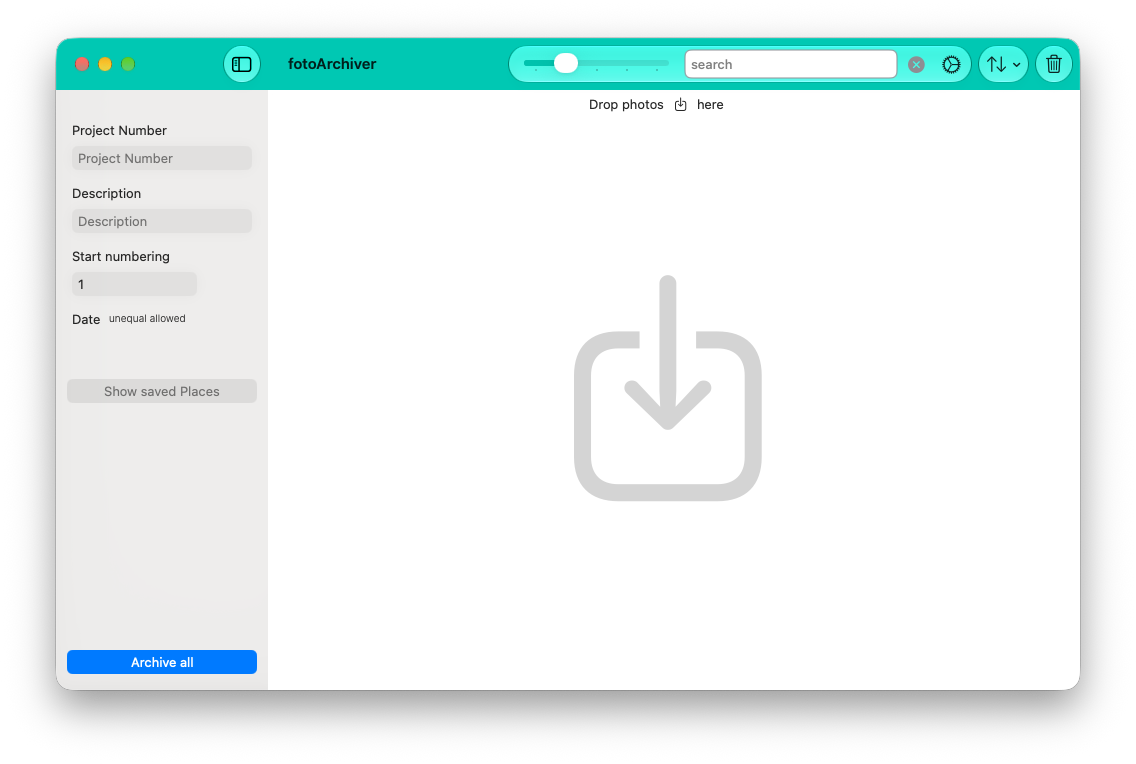
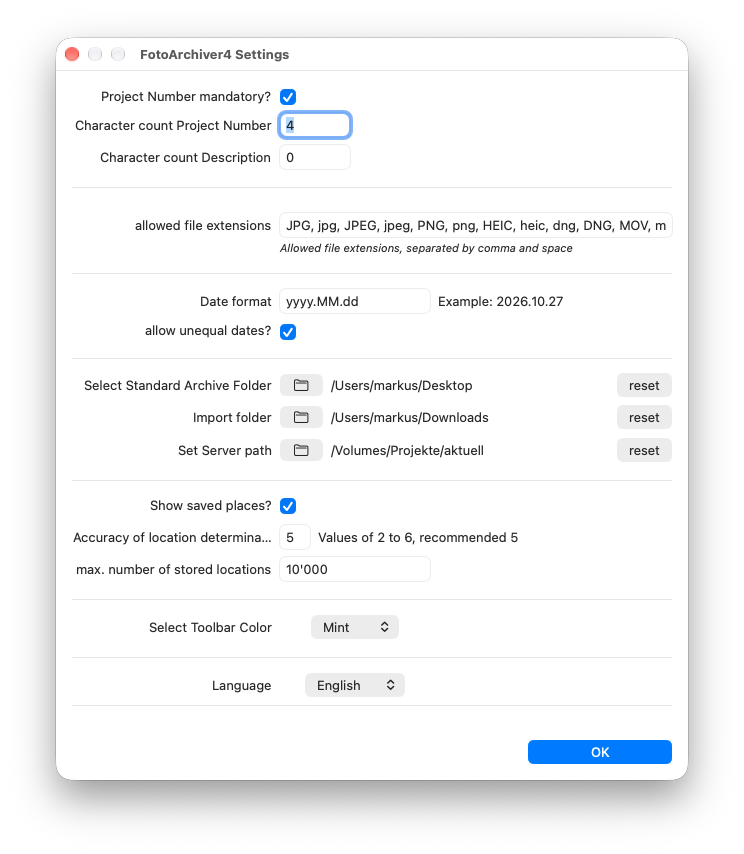
FotoArchiver4 can be adapted to suit your individual workflow.
If required, you can make entering a project number mandatory and specify the exact number of digits it must contain.
With a project number:
The new folder will be named as follows:
Without a project number:
The new folder will be named as follows:
This creates a consistent and well-organized folder structure, making it easy to locate your photos whenever you need them.
FotoArchiver4 can also archive your photos directly into an existing project structure on a file server.
The path to the project directory on the server, along with additional options, can be configured through the Settings menu or by clicking the gear icon in the toolbar of the application window.
How the archiving process works:
If a connection to the server is available, FotoArchiver4 searches the selected project directory for the specified project number.
If a matching project is found, the application
looks for a subfolder named
If this folder also exists, the newly created folder containing the archived photos is moved into the corresponding project folder.
If archiving to the server is
not possible:
If the server cannot be reached, no matching
project is found, or the required photo
subfolder does not exist, the photos are
automatically stored in the configured
Default Archive Folder.
Do you have questions about FotoArchiver4,
suggestions for improvements, or ideas
for new features?
I would be happy to hear from you!
Email: fotoArchiver@caad.ch